
Meshy AI: Can You Really Turn an Idea Into a 3D Model in Minutes?

Creating a usable 3D model traditionally requires specialized software, technical skills, and often hours of modeling, texturing, and cleanup. Meshy AI changes that workflow by allowing creators to start with something much simpler: a text description, an image, or even a creative idea.
Meshy is an AI-powered 3D content creation platform designed for artists, game developers, 3D printing enthusiasts, XR creators, designers, and people who may not have traditional 3D modeling experience. Its tools can generate, texture, animate, and export 3D assets through a browser-based workflow.
But the important question is not simply whether Meshy AI can generate a 3D object. The bigger question is how do you use it effectively without ending up with a model that looks impressive but is difficult to actually use?
Here is what you need to know.
What Is Meshy AI?
Meshy AI is an AI 3D model generator that converts text descriptions and images into 3D assets. Instead of manually building geometry from scratch, users can describe what they want or provide a visual reference and let Meshy’s AI create a starting model.
The platform currently combines several stages of a 3D workflow, including:
- Text to 3D
- Image to 3D
- AI Texturing
- AI image generation
- Animation and rigging
- Scene creation
- Video generation
- 3D printing workflows
- API-based generation
Meshy’s official documentation describes the platform as an end-to-end workflow for creating production-oriented 3D assets from text, images, and conversational prompts.
That makes it more than a simple prompt-to-object generator.
How Does Meshy AI Work?
The easiest way to understand Meshy AI is to think of it as a shortcut between an idea and a 3D asset.
Suppose you want a fantasy treasure chest.
Instead of opening traditional 3D software and modeling the chest piece by piece, you could describe the object using Text to 3D. Meshy processes the description and creates a 3D model that you can inspect and continue refining.
Meshy’s Text to 3D workflow can use a two-stage process: a preview generates the initial geometry, while a refinement stage can apply texturing.
If you already have a visual reference, Image to 3D can be the better starting point. Meshy’s documentation says an image gives the system a clearer visual target than text alone, making this approach particularly useful when matching a specific character, product concept, prop, or design.
How to Use Meshy AI Step by Step
Getting started does not require traditional 3D modeling expertise.
1. Create Your Meshy Account
Sign up through Meshy’s website. The platform currently offers a free plan, and its official documentation states that new users can receive free credits without requiring a credit card.
2. Choose Text to 3D or Image to 3D
Use Text to 3D when you have an idea but no reference image.
For example:
A stylized medieval wooden treasure chest with iron bands, an aged metal lock, detailed wood grain, realistic proportions, isolated object.
Use Image to 3D when you already have concept art, a photograph, sketch, or other reference.
3. Keep Your Prompt Specific
A vague prompt such as “cool robot” leaves too many details open.
A stronger prompt describes the subject, style, materials, proportions, and important visual characteristics.
For example:
A compact futuristic exploration robot, white ceramic body, dark mechanical joints, two camera sensors, four articulated legs, realistic industrial design, isolated on a clean background.
The goal is not to write the longest possible prompt. The goal is to communicate the design clearly.
4. Review the Model From Multiple Angles
Never judge a generated 3D model only from the front.
Rotate it and inspect the back, sides, underside, geometry, textures, proportions, and areas that were not clearly visible in the original reference.
This is particularly important with Image to 3D because the AI must infer portions of an object that may not exist in the source image.
5. Use Post-Processing When Necessary
Meshy includes tools for additional stages of the workflow, including texturing, remeshing, rigging, and export. Its official quick-start workflow specifically presents generation followed by post-processing and export as part of the process.
That means the first generation should be viewed as a starting point rather than an automatic replacement for every professional 3D workflow.
Meshy AI Image to 3D: When Should You Use It?
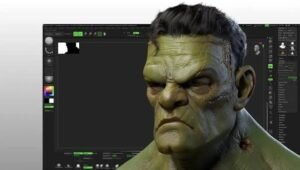
Image to 3D is especially useful when visual accuracy matters.
Meshy recommends clear images with a relatively simple background, with 512×512 or higher resolution suggested in its documentation. The platform also supports multi-view workflows, where several images of the same object can provide additional information from different angles.
For better results:
- Use a clear subject.
- Avoid unnecessary background objects.
- Keep lighting reasonably consistent.
- Show the complete object whenever possible.
- Use multiple angles for complicated objects.
- Avoid severe perspective distortion.
For characters, Meshy also provides pose controls, which can be useful when preparing models for later rigging or animation.
Meshy AI Text to 3D vs. Image to 3D
The choice is simple:
Use Text to 3D when the idea exists mainly in your imagination.
Use Image to 3D when you already have a visual reference.
Image-based generation generally provides a more concrete target because the AI can analyze the visual characteristics of the reference. Text generation, meanwhile, gives you more freedom to explore concepts without first creating an image.
For a product designer, for example, an existing concept sketch may be a better starting point than describing the entire product in words.
For a game developer brainstorming a new creature, Text to 3D may be faster.
What Can You Do With Meshy AI?
The practical applications are broader than simply creating random 3D objects.
Game Development
Developers can use generated assets for prototyping characters, props, environments, and concepts. Meshy also provides workflows aimed at optimized, game-ready assets.
3D Printing
Creators can use AI-generated models as starting points for physical projects. Meshy’s documentation also highlights 3D-printing workflows and export options.
Product Visualization
Designers can quickly turn concepts into 3D representations before investing substantial time in traditional modeling.
Animation
Meshy provides rigging and animation capabilities, including a library of ready-to-use motions. Its feature documentation says the animation system supports humanoid and quadruped characters.
Creative Prototyping
Perhaps the biggest advantage is speed. An idea that would previously require several tools can move through multiple stages inside one ecosystem.
Is Meshy AI Free?
Yes, Meshy offers a free plan. According to its current official pricing page, the available plans include Free at $0, Pro at $20 per month, Studio at $60 per month, and Enterprise with custom pricing. Pricing can change, so users should check the official pricing page before subscribing.
The free option makes it possible to experiment before committing to a paid plan.
However, free access should not be confused with unlimited professional production. Credit limits, features, output requirements, and commercial-use conditions can vary by plan, so check the current terms before using generated assets in a commercial project.
Meshy AI Tips for Better 3D Results
The quality of the input has a major influence on the output.
Start with one clear subject. Complicated scenes can introduce unnecessary ambiguity.
Describe materials. Words such as wood, brushed metal, leather, glass, stone, or ceramic can help establish the intended appearance.
Describe the whole object. Do not focus only on the most visible part.
Use reference images when accuracy matters. A visual reference gives the generation system more information than a short text description.
Inspect the topology and textures. A visually attractive model may still require cleanup before being used in a production pipeline.
Treat AI generation as part of the workflow, not the entire workflow. Professional projects may still require editing, optimization, UV work, rigging, or other specialized steps.
Read More:- Salmonella Egg Recall: Are Your Eggs Safe? Check These Codes Now
What Makes Meshy AI Different?
Meshy’s biggest strength is the breadth of its workflow.
The platform connects generation with texturing, animation, image creation, scene workflows, video, printing, and developer APIs. Its current feature set is designed to move creators from an initial concept toward an exportable asset without requiring them to manually switch between every stage.
Meshy also offers a conversational 3D Agent, which allows users to brainstorm and create through a chat-based workflow rather than relying exclusively on a single generation prompt. The feature is currently described by Meshy as being in beta.
For developers, Meshy also exposes generation capabilities through APIs, allowing teams to integrate AI 3D generation into their own applications and workflows.
The Bottom Line
Meshy AI is best understood as an AI-assisted 3D creation platform rather than a magic button that eliminates every part of professional modeling.
Its real value is the ability to shorten the distance between an idea and a usable 3D starting point.
For beginners, that can make 3D creation much more approachable. For experienced creators, it can accelerate concept development, prototyping, texturing, and asset production.
The smartest approach is to use Meshy AI for what AI does particularly well—rapid generation and exploration—then apply human judgment to quality control, optimization, design decisions, and final production.
Frequently Asked Questions About Meshy AI
1. What is Meshy AI?
Meshy AI is an AI-powered 3D creation platform that can generate 3D models from text descriptions and images. It also provides tools for texturing, animation, image generation, scenes, video, 3D printing, and API-based workflows.
2. Is Meshy AI free?
Yes. Meshy currently offers a free plan. Its official pricing page lists Free, Pro, Studio, and Enterprise options.
3. Can Meshy AI turn an image into a 3D model?
Yes. Meshy’s Image to 3D feature converts supported images into textured 3D models. It also supports multi-view workflows for additional visual information.
4. Can Meshy AI create 3D models from text?
Yes. Text to 3D allows users to describe an object or character using natural language and generate a 3D model from the description.
5. Is Meshy AI good for beginners?
It can be. Meshy’s browser-based workflow allows people without extensive traditional 3D modeling experience to experiment with text and image-based generation.
6. Can Meshy AI create game assets?
Yes. Meshy supports workflows intended for game-ready assets, including optimized topology and character-related workflows.
7. Can Meshy AI models be used for 3D printing?
Meshy supports 3D-printing workflows and provides export options designed for downstream use. However, users should inspect and prepare a generated model appropriately before physical printing.
8. Can Meshy AI animate characters?
Yes. Meshy provides character rigging and animation capabilities, including ready-made animation options.
9. Is Meshy AI better with text or images?
It depends on the goal. Text to 3D is useful when you are starting with an idea, while Image to 3D is generally more appropriate when you have a specific visual reference that needs to be followed.
10. Can developers use Meshy AI through an API?
Yes. Meshy provides APIs for workflows including Image to 3D and Text to 3D, allowing developers to integrate generation into applications and automated workflows.
11. Does Meshy AI replace professional 3D software?
Not necessarily. It can significantly accelerate certain stages of 3D creation, but professional projects may still require modeling, topology optimization, UV work, texture editing, rigging, animation, or other specialized tools.
12. What is the best way to get better results from Meshy AI?
Use clear prompts, simple subjects, high-quality reference images, appropriate camera views, and detailed descriptions of materials and proportions. After generation, inspect the model from multiple angles rather than accepting the first result automatically.