
How to Use Gemini Live Camera: Google Adds Powerful Real-Time AI Help
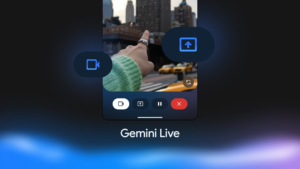
How to Use Gemini Live Camera is becoming one of the most useful ways to interact with Google’s AI. Instead of describing an object, error message or confusing screen manually, users can turn on Gemini Live, share their camera and ask Gemini about what is directly in front of them. Google says the feature can help with objects, manuals, troubleshooting and even navigating apps.
Quick Answer
To use Gemini Live camera, open the Gemini mobile app, tap Live, start a conversation, then tap the Camera button to show Gemini what you see. You can point the camera at an object, appliance display, error code or other problem and ask Gemini for an explanation or step-by-step help.
Current Status: Gemini Live Camera
Google’s current Gemini Live experience supports camera sharing and screen sharing on compatible mobile devices. On Android, users can also use Guided Vision for real-time audio descriptions of surroundings, text and objects, although availability can vary by device and rollout.
5 Key Developments
- Real-time visual help: Gemini can discuss what your camera is showing.
- Object identification: Ask Gemini to identify or explain something you are looking at.
- Troubleshooting: Show a problem, error message or device display and ask for possible solutions.
- Manuals and text: Gemini can help interpret visible text and small labels.
- Screen assistance: Screen sharing lets Gemini help explain confusing apps and on-screen content.
For more free AI tools, visit now: https://freeaitools4u.com/
How Do You Turn On Gemini Live Camera?
Open Gemini, tap Live, begin speaking and select the Camera option. Point the phone at the item you want Gemini to understand and ask a specific question, such as, “What is this error code?” or “Show me how to fix this.”
What Can Gemini Live Camera Do?
Gemini Live camera can provide contextual help with everyday objects, labels, appliance displays, troubleshooting situations and surroundings. Google also recommends using camera input when explaining something visually would be easier than describing it with words.
Can Gemini Live See Your Phone Screen?
Yes. Gemini Live supports screen sharing, allowing users to show the full device screen and ask questions about what is displayed. This can be useful when navigating an unfamiliar app or trying to understand something on-screen.
What Happens Next?
Google continues expanding Gemini’s multimodal capabilities, including camera-based assistance and Guided Vision. Availability and specific features can vary by device, account and region.
Final Take
How to Use Gemini Live Camera is simple: start Gemini Live, turn on the camera and ask questions about what you see. The biggest advantage is removing the need to describe every visual detail manually, making Gemini more useful for real-world troubleshooting, identification and everyday assistance.
Read More:- Delta Force Season 11: Rally & Win Update Brings Clan Rewards and Operator Changes
FAQs
1. What is Gemini Live camera?
It lets you share your camera with Gemini Live and have a real-time conversation about what the camera sees.
2. Can Gemini Live identify objects?
Yes. Gemini can use camera input to identify and describe objects and surroundings.
3. Can Gemini Live help with error codes?
Yes. Google specifically highlights using Gemini Live to understand visible error codes and troubleshoot problems.
4. Can Gemini Live see my phone screen?
Yes. Screen sharing allows Gemini to receive and discuss the full device screen.
Pingback: Google Gemini hacked 3 companies: 5 Shocking Facts From the AI Security Test