
How to Use Gemini in Chrome: 7 Powerful Features You Can Try Now
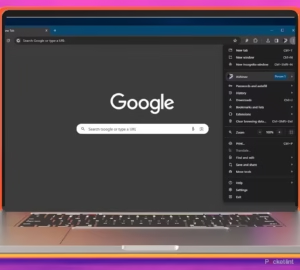
How to Use Gemini in Chrome is becoming an important skill for anyone who wants AI help without constantly switching between browser tabs and separate apps. Google’s browser assistant can summarize webpages, answer questions about the page you’re viewing, compare information across multiple tabs and, for eligible users, handle certain multi-step web tasks.
Quick Answer
To use Gemini in Chrome, open the latest Chrome version on a supported computer, click Ask Gemini at the top of the browser and enter your request. Gemini can use the current webpage as context, while desktop users can share up to 10 open tabs for comparison and analysis. Auto browse can also complete supported multi-step web tasks for eligible U.S. users.
Current Status: Gemini Is Built Into Chrome
Gemini in Chrome works as a browser-based AI assistant. Google says it can help users understand webpages, summarize lengthy content, answer questions and combine information from multiple tabs. Availability varies by device, region and account.
7 Powerful Things You Can Do
- Summarize webpages → Quickly extract the important points from long articles and pages.
- Compare up to 10 tabs → Share multiple open tabs and ask Gemini to compare prices, information, products or research.
- Ask questions about a webpage → Gemini can use the current tab’s content to answer specific questions.
- Analyze YouTube content → Gemini in Chrome can help identify key points from YouTube videos.
- Connect with Google apps → Depending on availability, Chrome can work with services such as Gmail, Calendar, Maps and YouTube.
- Create reusable AI workflows → Chrome’s Skills feature lets users save useful prompts and reuse them across webpages and selected tabs.
- Complete multi-step tasks → Auto browse can navigate websites, click buttons and fill forms for supported tasks, although access is currently limited to eligible users.
For more free AI tools, visit now: https://freeaitools4u.com/
How Do You Use Gemini in Chrome?
Open Chrome, select Ask Gemini, type your request and submit it. To analyze additional pages, select Add tabs and choose the tabs you want Gemini to use. Google currently allows up to 10 open tabs to be shared on desktop.
Can Gemini in Chrome Browse the Web for You?
Yes, auto browse can perform certain multi-step web tasks. Google says eligible users can ask Gemini to research products, help with travel, make reservations and perform other supported actions. The feature is currently being gradually released and requires specific eligibility in the U.S.
What Happens Next?
Google is continuing to expand Gemini’s browser capabilities, including deeper integrations, reusable Skills and agentic browsing features. That makes Gemini browser AI increasingly useful for research, shopping, productivity and everyday web tasks.
Final Take
Gemini in Chrome turns the browser itself into an AI workspace. For everyday users, the biggest advantages are page summaries, direct questions and multi-tab comparison. For eligible users, auto browse adds another layer by allowing Gemini to handle supported web tasks.
Read More:- GTA 6 Stephen Root Confirms Brian Heder Role Ahead of November Release
FAQs
1. How do I use Gemini in Chrome?
Click Ask Gemini in Chrome, enter your question and submit it. Gemini can use the current webpage as context.
2. Can Gemini in Chrome compare multiple tabs?
Yes. Desktop users can share up to 10 open tabs with Gemini for comparison and analysis.
3. What is Gemini Chrome AI?
Gemini Chrome AI is Google’s built-in browser assistant for summarizing pages, answering questions, analyzing tabs and performing other AI-assisted tasks.
4. What is Gemini auto browse?
Auto browse allows eligible Gemini in Chrome users to have Gemini navigate websites and complete supported multi-step tasks.
5. Is Gemini in Chrome available to everyone?
No. Google is gradually rolling out Gemini in Chrome, so availability depends on your device, region, account and feature eligibility.
Pingback: Trump AI: President Rejects New Guardrails as China Race Intensifies