
How to Use Gemini AI for Emails: 7 Powerful Email Hacks
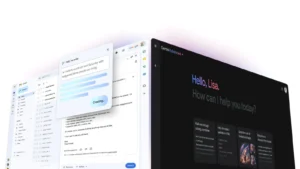
If writing emails takes too much time, how to use Gemini AI for emails is a useful skill to learn. Google’s Gemini features in Gmail can help draft new messages, improve existing text, suggest replies, summarize conversations, and work with information from your inbox.
Quick Answer
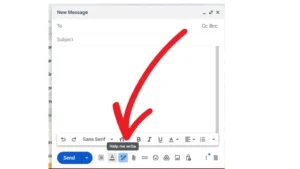
You can use Gemini AI for emails directly inside Gmail with Help me write. Open Compose, enter a prompt describing the recipient, topic, and tone, then let Gemini generate a draft. You can also ask Gemini to make an email more formal, shorter, clearer, or more detailed before inserting and reviewing it.
How to Use Gemini AI for Emails
Google currently offers several useful Gemini-powered email features, although availability depends on your Google account and plan. Personal Gmail availability can be limited by location and plan, while eligible Google Workspace accounts have additional capabilities.
7 Powerful Ways to Use Gemini
- Write emails from scratch — Try: “Write a professional follow-up email after a job interview.”
- Change the tone — Ask Gemini to make your message formal, friendly, or professional.
- Shorten long emails — Turn a lengthy draft into a concise message.
- Add useful details — Ask Gemini to elaborate when your draft feels too brief.
- Proofread your writing — Gemini can provide grammar, tone, and style suggestions.
- Suggest replies — Gemini can generate context-aware responses to email threads.
- Summarize conversations — Use Gemini to quickly understand long email threads and key points.
What Prompt Should You Use?
A strong prompt should include the recipient, purpose, important details, and desired tone. For example:
“Write a concise, professional email to my manager requesting Friday off. Keep it polite and under 100 words.”
Google recommends giving Gemini specific context to produce more useful drafts.
Is Gemini AI for Emails Worth Using?
Yes, especially for repetitive business communication, follow-ups, invitations, and rewriting. However, always review the generated message before sending because AI can produce inaccurate or inappropriate content.
Final Take
Learning how to use Gemini AI for emails can turn Gmail into a much faster writing assistant. Start with simple prompts, specify the tone and purpose, then edit the final draft before sending.
Read More:- Grand Theft Auto VI Drops 2 Wild PS5 Controllers
FAQs
1. Can Gemini write emails for me?
Yes. Gmail’s Help me write feature can generate new email drafts from prompts.
2. Can Gemini rewrite an email?
Yes. It can refine existing text and adjust tone and clarity.
3. Can Gemini summarize emails?
Yes. Gemini can summarize email threads and help identify key information.
4. Can Gemini make an email shorter?
Yes. The refinement options include Shorten on supported Gmail experiences.
5. Is Gemini available in Gmail?
Yes, but available features depend on your account type, Google AI or Workspace plan, location, language, and platform.
Pingback: Tropical Depression Edouard: 5 Critical Storm Updates