
How to Use AI to Create Images: Powerful Beginner Guide

How to use AI to create images is easier than traditional graphic design. You can describe the visual you want in plain English, choose the right style and then refine the result until it matches your idea.
The key is not writing the longest possible prompt. A clear prompt with the right visual details usually gives you more control.
How to Use AI to Create Images
Start with five basic elements:
Subject + Action + Setting + Style + Composition
For example:
Create a photorealistic image of a futuristic electric car driving through New York City at night. Use cinematic lighting and wet streets.
Show realistic reflections on the road. Use a low-angle composition. Use a 16:9 aspect ratio.
This tells the image generator what to create, where it should appear and how the finished image should look.
How to Create Better AI Images With Prompts
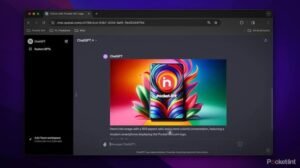
When learning how to use AI to create images, avoid vague prompts such as:
“Make a cool AI image.”
Instead, describe the important visual details. You can specify:
- Subject: person, product, animal or environment
- Style: photorealistic, cinematic, illustration or 3D
- Lighting: studio, soft, dramatic or natural
- Composition: close-up, wide shot or low angle
- Background: city, studio, nature or futuristic environment
- Aspect ratio: 16:9, 4:5, 1:1 or 9:16
This approach works especially well when creating images for websites, social media, advertisements and blog featured images.
ChatGPT and Gemini for AI Image Creation
ChatGPT can create images from natural-language instructions and can also refine generated images through follow-up requests. OpenAI recommends focusing prompts on the purpose, subject, action, setting and visual style rather than making prompts unnecessarily complicated.
Gemini also supports image generation and editing. Google recommends describing the subject, action, setting, and desired visual style. Start prompts with instructions like “create,” “generate,” or “draw.”
How to Use AI to Create Images for Free
Free access depends on the specific AI image generator and its current usage limits. Before choosing a tool, check whether it supports the image quality, editing controls and generation limits you actually need.
For beginners, start with a simple image tool. Practice improving one prompt instead of switching between many platforms.
How to Improve an AI-Generated Image
Your first result does not must be the final one.
Try follow-up instructions such as:
- Make the lighting more cinematic.
- Move the subject to the right.
- Make the background cleaner.
- Increase realism.
- Change the composition to 16:9.
- Remove unnecessary objects.
This iterative process is one of the easiest ways to learn how to use AI to create images effectively.
Final Takeaway
The best way to learn AI image creation is to start with a clear visual idea. Describe it clearly, then refine the result. You do not need complicated prompt language. You need enough detail for the AI to understand your subject, style, setting and desired composition.
Read More:- Red Dead Redemption 2: The Stunning Expansion Fans Didn’t Expect
FAQs
1. Can beginners create images with AI?
Yes. Modern AI image tools use natural language descriptions. Beginners can start without traditional graphic design skills.
2. What should an AI image prompt include?
Describe the subject, action, setting, visual style, lighting and composition. Add an aspect ratio when the final format matters.
3. How can I make AI-generated images look more realistic?
Specify realistic materials, natural lighting, detailed textures, realistic proportions and photographic composition.
4. Can AI edit an existing image?
Yes. Many current image-generation tools support editing an uploaded or previously generated image.