
Gemini Canvas: What Can You Actually Build With It—and How Do You Use It?
If you have ever opened Gemini with a simple idea and wished you could turn that idea into something you could actually edit, test, or use, Gemini Canvas is designed to solve exactly that problem.
Instead of keeping everything inside a normal chat conversation, Gemini Canvas gives you a workspace where you can create and refine documents, apps, presentations, code, quizzes, web pages and other interactive projects.
Google introduced Canvas as an interactive space for working with Gemini on documents and code. The feature has since expanded, and Google says Canvas can now support a wider range of creation and editing tasks.
For someone who has an idea but does not want to start from a blank document—or spend hours learning how to code—Gemini Canvas can be a surprisingly practical starting point.
What Is Gemini Canvas?
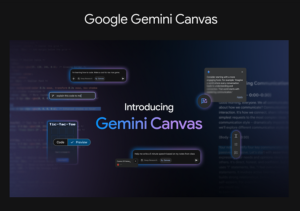
Gemini Canvas is an interactive workspace inside Gemini that lets you create something and then keep improving it through instructions and edits.
The important difference is that you are not simply asking Gemini a question and receiving an answer.
You can tell Gemini what you want to build, inspect the result, request changes, and continue refining the same project.
For example, instead of asking:
“Give me ideas for a personal budget.”
You could ask Gemini to create a personal budget tracker with categories, calculations and a simple interface.
Instead of asking for study notes, you could ask it to create a study guide, quiz or interactive learning resource.
That makes Canvas particularly useful for people who want to move from an idea to a usable draft quickly.
What Can You Do With Gemini Canvas?
Google’s current Gemini documentation describes Canvas as a place where users can create or edit documents, apps, slides and code. Depending on the available features and account, Canvas can also transform content into formats such as quizzes, infographics, web pages and Audio Overviews.
Here are some practical ways to use it.
1. Create Documents
You can use Gemini Canvas to produce a structured document instead of receiving a long answer in a chat window.
For example:
Prompt:
“Create a professional 1,500-word business proposal for a small software company targeting U.S. businesses. Include an executive summary, problem, solution, pricing model, implementation plan and conclusion.”
Once the draft appears, you can ask Gemini to rewrite individual sections, improve clarity or change the structure.
This is useful for proposals, reports, study material, project documentation and planning documents.
2. Build Simple Apps
One of the more interesting uses of Gemini Canvas is creating prototypes and simple interactive applications.
You do not necessarily need to begin by writing code yourself.
Try a prompt such as:
“Create a simple monthly expense tracker. Allow users to enter expenses, categorize them and see total spending by category. Make the interface clean and easy to use.”
Gemini can generate an interactive prototype, after which you can continue asking for changes.
Google’s Canvas in AI Mode also allows users in the U.S. to create custom interactive tools and dashboards directly within Search. Google says these prototypes can use fresh web information and the Knowledge Graph, and users can inspect underlying code and refine the result through follow-up prompts.
3. Generate and Improve Code
Gemini Canvas can also be useful if you are experimenting with programming.
You can ask it to create a small HTML page, prototype, calculator, quiz, dashboard or other application and then request modifications.
A better approach is to give Gemini a specific goal rather than simply saying:
“Make an app.”
For example:
“Build a responsive HTML calculator for calculating monthly loan payments. Include loan amount, interest rate and term inputs. Explain the calculation below the calculator.”
Specific requirements generally give you a much better starting point.
4. Turn Ideas Into Presentations
Canvas can also help transform information into presentation-style content.
For example:
“Create a 10-slide presentation explaining artificial intelligence to small-business owners. Keep each slide concise and include practical examples.”
You can then ask for a stronger introduction, simpler language, additional examples or a different structure.
5. Create Quizzes and Learning Materials
Students, teachers and professionals can use Canvas to turn information into interactive learning material.
You could provide a topic and ask:
“Create a 20-question multiple-choice quiz about U.S. geography. Include explanations for every answer and make the difficulty increase gradually.”
This is particularly useful when you want to learn from material instead of simply reading another summary.
How to Use Gemini Canvas Step by Step
Getting started is relatively simple.
Step 1: Open Gemini
Go to Gemini and start a new conversation.
Step 2: Select Canvas
On the web version, Google currently instructs users to select Canvas from the options below the prompt box. You can then describe what you want to create.
Step 3: Describe the Result, Not Just the Topic
This is where many users get poor results.
Do not write:
“Create a website.”
Instead, explain:
- What the website is for
- Who will use it
- What information it should contain
- What actions users should be able to perform
- What visual style you want
- Whether it should work on mobile
- Any restrictions or requirements
The more useful context you provide, the easier it becomes to refine the output.
Step 4: Review the First Version
Do not assume the first result is perfect.
Check the wording, calculations, layout, links, functionality and factual claims.
AI-generated output can contain mistakes, so important information should always be verified.
Step 5: Iterate
This is where Canvas becomes more useful than a one-shot prompt.
Instead of starting over, say:
“Make the navigation simpler.”
“Add a search box.”
“Reduce the amount of text.”
“Fix the mobile layout.”
“Explain this section in simpler English.”
“Add an export button.”
Small, precise instructions can gradually turn an initial prototype into something much more useful.
The Best Gemini Canvas Prompt Formula
A reliable prompt structure is:
Goal + Audience + Features + Format + Design + Constraints
For example:
“Create a simple project management dashboard for a small U.S. marketing agency. Include projects, deadlines, task status, priority and team members. Use a clean professional interface, make it responsive, and keep the navigation simple.”
This is considerably more useful than:
“Make a project management app.”
Common Gemini Canvas Problems—and How to Fix Them
“My Canvas result is too generic.”
Give Gemini more context.
Mention the audience, purpose, examples, required sections and desired outcome.
“The app looks good but doesn’t work properly.”
Tell Gemini exactly what is broken.
Instead of:
“Fix it.”
Try:
“The filter button does not update the project list when a status is selected. Fix that behavior without changing the existing layout.”
“Gemini changed something I didn’t want changed.”
Tell it what must remain unchanged.
For example:
“Keep the current layout, typography and navigation. Only modify the expense calculation.”
“The generated information may be wrong.”
Verify important claims independently.
Canvas is an AI creation environment, not a replacement for professional fact-checking.
This matters especially for financial, legal, medical, security or other high-stakes information.
Gemini Canvas vs. Regular Gemini Chat
The simplest way to think about the difference is this:
Regular Gemini chat is better when you primarily need an answer.
Gemini Canvas is better when you want to create something and continue working on it.
If you need a definition, explanation or quick idea, normal chat may be enough.
If you need a document, prototype, interactive tool, presentation, code project or learning resource that you expect to refine, Canvas can provide a more appropriate workspace.
Read More:- Claude AI Premium: 7 Hidden Problems Users Discover After Paying
Who Should Use Gemini Canvas?
Gemini Canvas can be useful for:
- Students creating study resources
- Entrepreneurs developing prototypes
- Marketers creating campaign concepts
- Writers developing long-form documents
- Teachers creating quizzes
- Developers testing simple ideas
- Researchers organizing information
- Small businesses building internal tools
- Professionals creating presentations and reports
The biggest advantage is not that Canvas magically creates a finished professional product.
The advantage is speed of iteration.
You can start with a rough idea, see something tangible, identify what is wrong and then improve it.
Final Verdict
Gemini Canvas is most useful when you want to move beyond conversation and start building.
Its value comes from the combination of generation, editing and iteration. You can create a first version, inspect it, give Gemini another instruction and keep improving the same project.
For beginners, that can make complicated tasks feel more approachable. For experienced users, it can provide a fast way to prototype ideas before investing more time in a full production workflow.
The best results, however, come from treating Canvas as a collaborative AI workspace rather than an automatic replacement for human judgment.
Start with a specific objective, provide useful context, test what Gemini creates and refine it deliberately.
That workflow is far more powerful than simply asking AI to “make something.”
Frequently Asked Questions About Gemini Canvas
1. What is Gemini Canvas?
Gemini Canvas is an interactive workspace within Gemini for creating and editing documents, apps, slides, code and other content. Google has expanded Canvas with additional creation formats and capabilities.
2. Is Gemini Canvas free?
Availability and features can depend on the Gemini product, account and feature rollout. Check your Gemini interface and Google’s current documentation for the features available to your account.
3. How do I open Gemini Canvas?
On the Gemini web app, start a new chat and select Canvas from the options below the prompt box. You can then describe the document, app, code or other project you want to create.
4. Can Gemini Canvas create apps?
Yes. Canvas can be used to create interactive apps and prototypes. Google also describes Canvas in AI Mode as a way to create custom interactive tools and dashboards.
5. Can Gemini Canvas write code?
Yes. Google specifically lists code creation and editing among Canvas capabilities. Users can also request changes to generated code through additional prompts.
6. Can Gemini Canvas create documents?
Yes. You can use Canvas to create and edit documents, then continue refining the content instead of repeatedly starting new chats.
7. Can Gemini Canvas create quizzes?
Yes. Google’s Gemini documentation lists quiz creation as one of the available Canvas-related formats.
8. Can Gemini Canvas create a website?
Canvas can create web-page and interactive-app experiences. The exact capabilities can vary, so generated websites should be tested carefully before being treated as production-ready.
9. Is Gemini Canvas good for beginners?
Yes, particularly for people who want to prototype an idea without starting from an empty code editor or document. Clear prompts and iterative instructions are still important.
10. Can Gemini Canvas replace a professional developer or designer?
Not reliably for every project. Canvas can accelerate prototyping and experimentation, but production applications still require testing, security review, accessibility checks, performance optimization and human oversight.
11. What makes a good Gemini Canvas prompt?
A strong prompt explains the goal, audience, required features, format, design preferences and important constraints. Specific instructions generally provide a better starting point than vague requests.
12. Can I edit a Canvas project after creating it?
Yes. The central idea of Canvas is iterative creation. You can continue giving Gemini instructions to modify and refine the content or application.
13. Is Gemini Canvas useful for business?
Yes. Businesses can use it for prototypes, reports, presentations, planning documents, dashboards, internal tools and other early-stage projects.
14. Should I trust everything Gemini Canvas generates?
No. AI output should be reviewed before publication or important decisions. Verify factual claims, calculations, code behavior and any information that could materially affect users.
15. What is the biggest advantage of Gemini Canvas?
Its biggest advantage is the ability to create, inspect and refine an idea in one workspace. Instead of treating AI as a question-and-answer tool, Canvas lets users work toward a concrete result.
Editorial note: This guide is based on Google’s published Gemini Canvas documentation and Google Search guidance. Product interfaces and feature availability can change, so users should check Google’s current interface for account-specific availability.