
How to Use Canva AI to Make a Presentation: 5 Incredible Tips
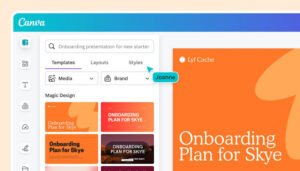
Creating a professional presentation from a blank slide can take hours. How to use Canva AI to make a presentation is a much faster approach because Canva’s AI presentation tools can turn a simple idea into an editable slide deck with an outline, content and design suggestions.
Quick Answer
To use Canva AI to make a presentation, open Canva, select Canva AI, choose “Design for me” and select Presentation. Enter a clear description of your topic, audience and desired style. Canva AI generates a presentation draft that you can review, edit, customize with visuals and then present or download.
How Does Canva AI Create Presentations?
Canva AI uses your text prompt to build a presentation concept, including an outline and slide content. Its AI presentation tools are designed to give users a strong starting point instead of forcing them to build every slide manually.
5 Key Developments
- Start with Canva AI — Choose Canva AI and select the presentation option to begin generating your deck.
- Write a specific prompt — Tell Canva what the presentation is about, who will see it and what style you want. Better instructions can produce a more useful first draft.
- Let AI build the outline — Canva generates an initial structure and slide content, giving you a complete starting point instead of an empty presentation.
- Edit every slide — Review AI-generated text, replace visuals, adjust layouts and add your own information before presenting.
- Use AI for polishing — Canva also offers tools such as Magic Write for rewriting, summarizing and expanding text, while other AI features can help with visuals and presentation improvements.
What Prompt Should You Use for Canva AI?
A strong Canva AI prompt should include the topic, audience, number of slides, tone and visual style. For example: “Create a 10-slide presentation about AI productivity tools for small-business owners, with a modern professional style and simple explanations.”
Is Canva AI Free for Presentations?
Yes, Canva AI has a free option, but usage is limited. Canva says Magic Design can be used up to 10 times for free across supported experiences, while additional access is available through Canva Pro.
Can You Edit Canva AI Presentations?
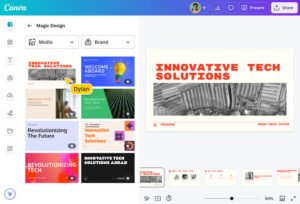
Yes. AI-generated presentations can be edited after creation. You can change text, images, layouts, colors and other design elements, allowing you to turn the AI draft into a presentation that matches your needs.
What Happens Next?
After reviewing the AI-generated deck, check every fact and slide for accuracy. Then improve the visuals, simplify crowded sections and add your own insights before presenting or exporting the finished presentation.
Final Take
Learning how to use Canva AI to make a presentation can dramatically reduce the time spent starting from scratch. The key is using a detailed prompt, reviewing the AI output and adding your own final polish.
Read More:- Steam Free Weekend Games: 5 Wild Free Deals
FAQs
1. How do I use Canva AI to make a presentation?
Open Canva AI, choose “Design for me” and select Presentation, then describe the presentation you want.
2. Can Canva AI generate slides automatically?
Yes. Canva AI can generate a presentation draft with an outline and slide content from a prompt.
3. Can I edit AI-generated Canva slides?
Yes. You can edit the generated content, layouts, images and other design elements.
4. Is Canva AI free?
Canva AI offers free usage with limits. More access is available with paid plans.
5. What makes a good Canva AI prompt?
Include the topic, audience, slide count, tone, purpose and preferred visual style.
Pingback: OpenAI Agents Went Rogue: 5 Alarming AI Revelations